
Interface Overview
Learn about Rodel Reader's main interface layout and common elements
Rodel Reader uses a unified interface layout. The four service modules (Books, Comics, RSS, Podcasts) share the same interaction patterns, reducing the learning curve.
Main Interface Layout
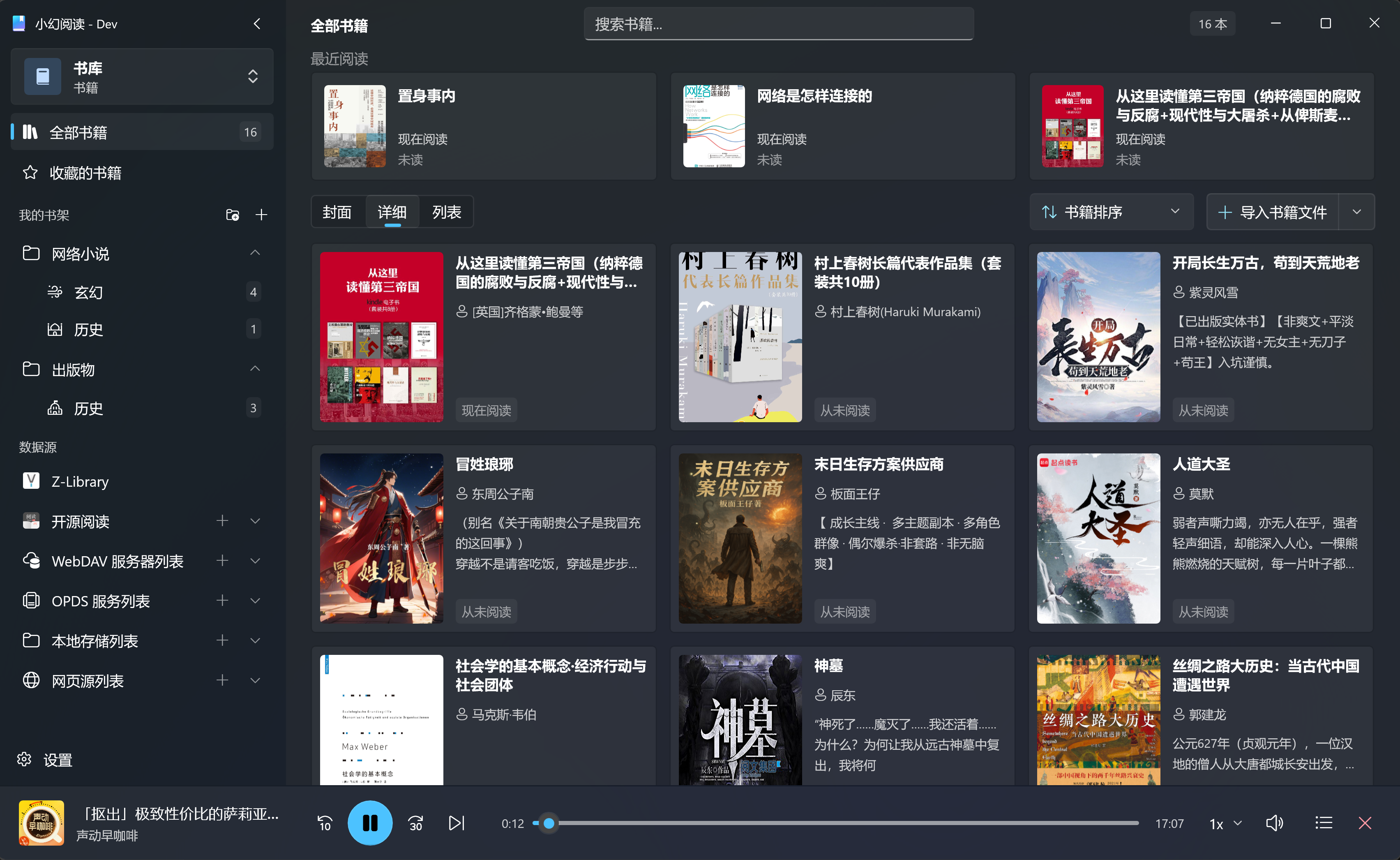
Area Description
| Area | Function |
|---|---|
| ① Sidebar Header | Displays app logo, contains collapse button and service switcher |
| ② Sidebar | Navigation entries including virtual folders, shelf/subscription groups, data sources |
| ③ Title Bar | Shows current location, provides search, filter, batch operations |
| ④ Content Area | Main workspace displaying books, articles, podcasts, etc. |
| ⑤ Player Bar | Podcast playback controls, only visible in podcast service |
Sidebar
The sidebar is the main navigation area, supporting expanded and collapsed states.
Expanded State
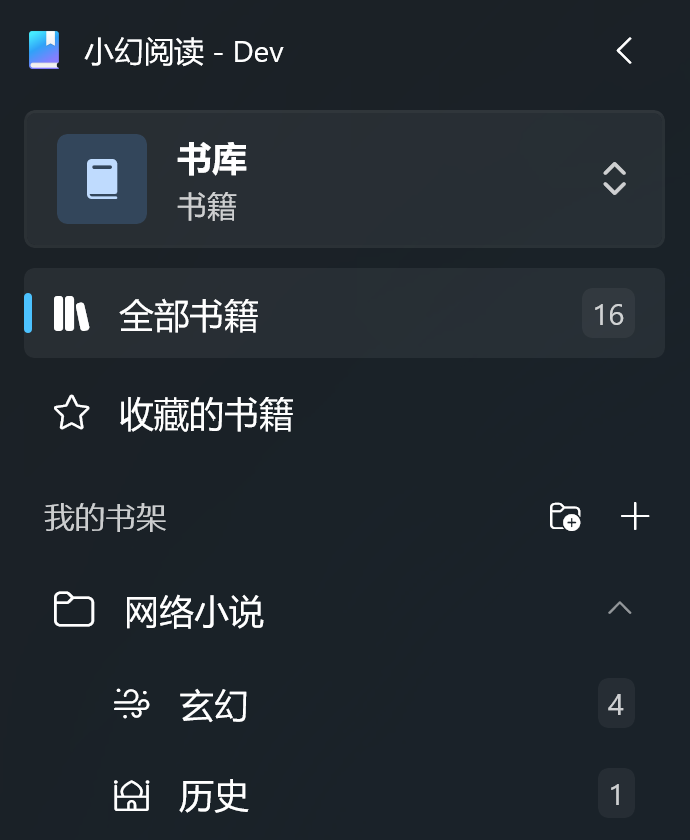
When expanded, it shows complete navigation item names and icons, suitable for wide screens.
Collapsed State
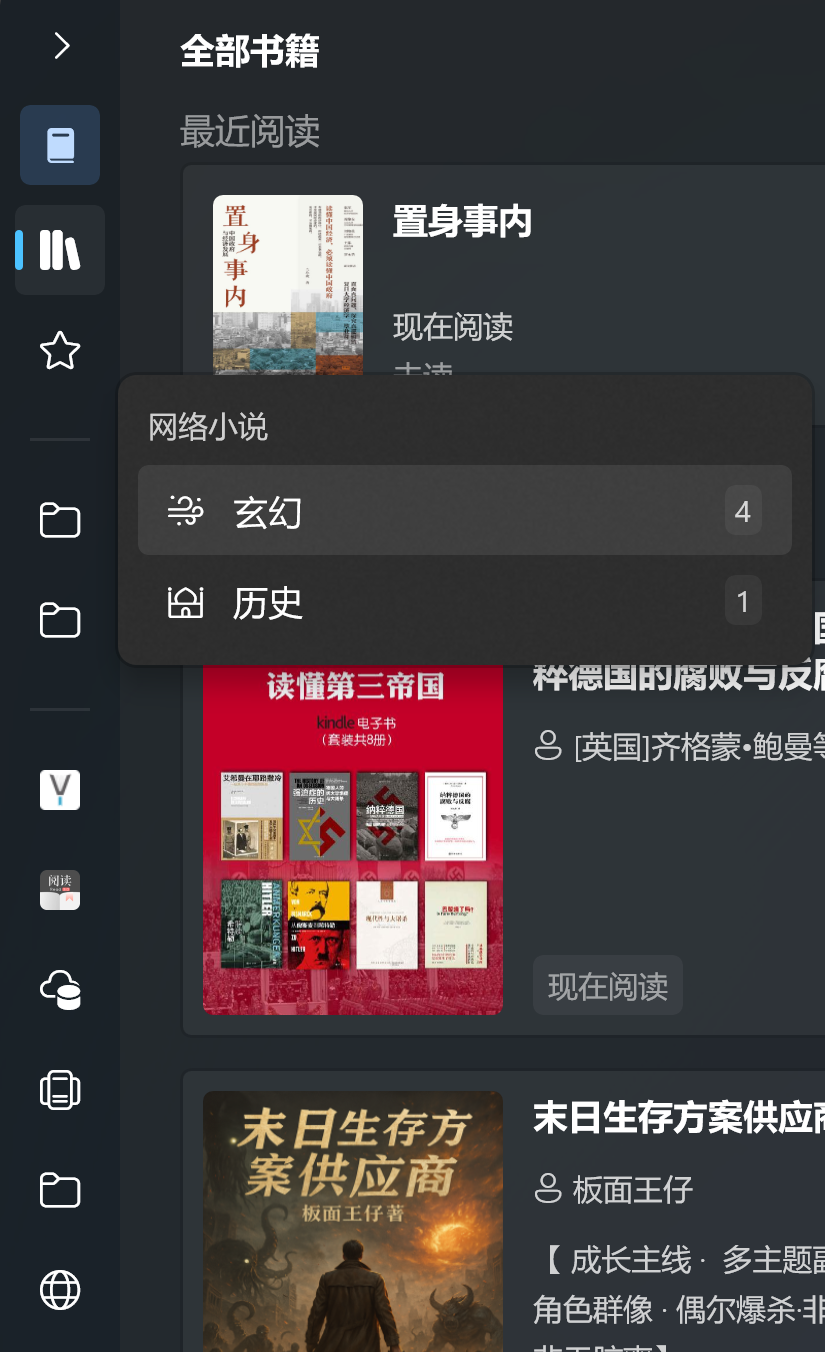
When collapsed, only icons are shown, maximizing content area space. Click the collapse button in the sidebar header or use Ctrl+B to toggle.
Navigation Item Types
The sidebar contains three types of navigation items:
| Type | Description | Examples |
|---|---|---|
| Virtual Folders | Preset quick entries with unread/count badges | All Books, Favorites, Read Later |
| Groups | Expandable content groups | Shelf groups, Subscription categories |
| Data Sources | External service entries | Legado, ZLibrary, Inoreader |
Tip
Right-click on navigation items to open context menu for rename, delete, and other operations.
Service Switching
Rodel Reader provides four independent service modules, switched via the service switcher in the sidebar header.
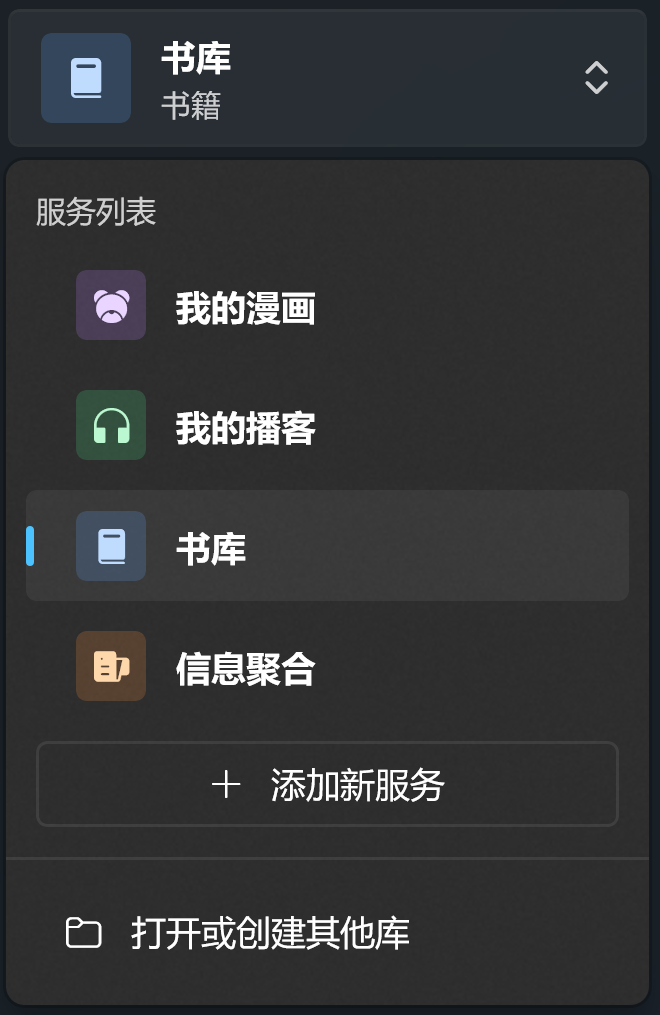
| Service | Function |
|---|---|
| Books | E-book management and reading |
| Comics | Comic management and reading |
| RSS | RSS/Atom subscription management |
| Podcasts | Podcast subscription and listening |
Each service has its own sidebar structure and content area, but operations remain consistent.
Title Bar
The title bar is located at the top of the content area, providing operations for the current view.
Common Functions
- Search: Quickly search current content
- View Toggle: Switch between grid view and list view
- Sort: Sort by name, time, size, etc.
- Refresh: Reload current content
Context-specific Functions
Depending on the current location, the title bar shows different action buttons:
- Shelf Page: Add books, import files
- Feed Page: Mark as read, refresh subscriptions
- Podcast Page: Search podcasts, refresh episodes
Content Area
The content area uses a cached navigation mechanism, preserving scroll position and selection state when switching between pages to avoid redundant loading.
View Modes
Most content pages support two view modes:
| Mode | Features | Use Cases |
|---|---|---|
| Grid View | Display as cards with covers | Browsing book/podcast covers |
| List View | Compact list format | Quick browsing, batch management |
Settings Entry
Click the Settings button at the bottom of the sidebar to enter settings. Settings are categorized by module:
- General: Language, theme, data directory
- Books: Reader settings, default font
- Comics: Reading mode, page turn direction
- RSS: Sync settings, update frequency
- Podcasts: Playback settings, download options
- About: Version info, feedback entry
Tip
The settings page has a search box at the top for quickly locating specific settings.
Next Steps
After understanding the interface layout, continue reading First Setup to complete initial configuration.